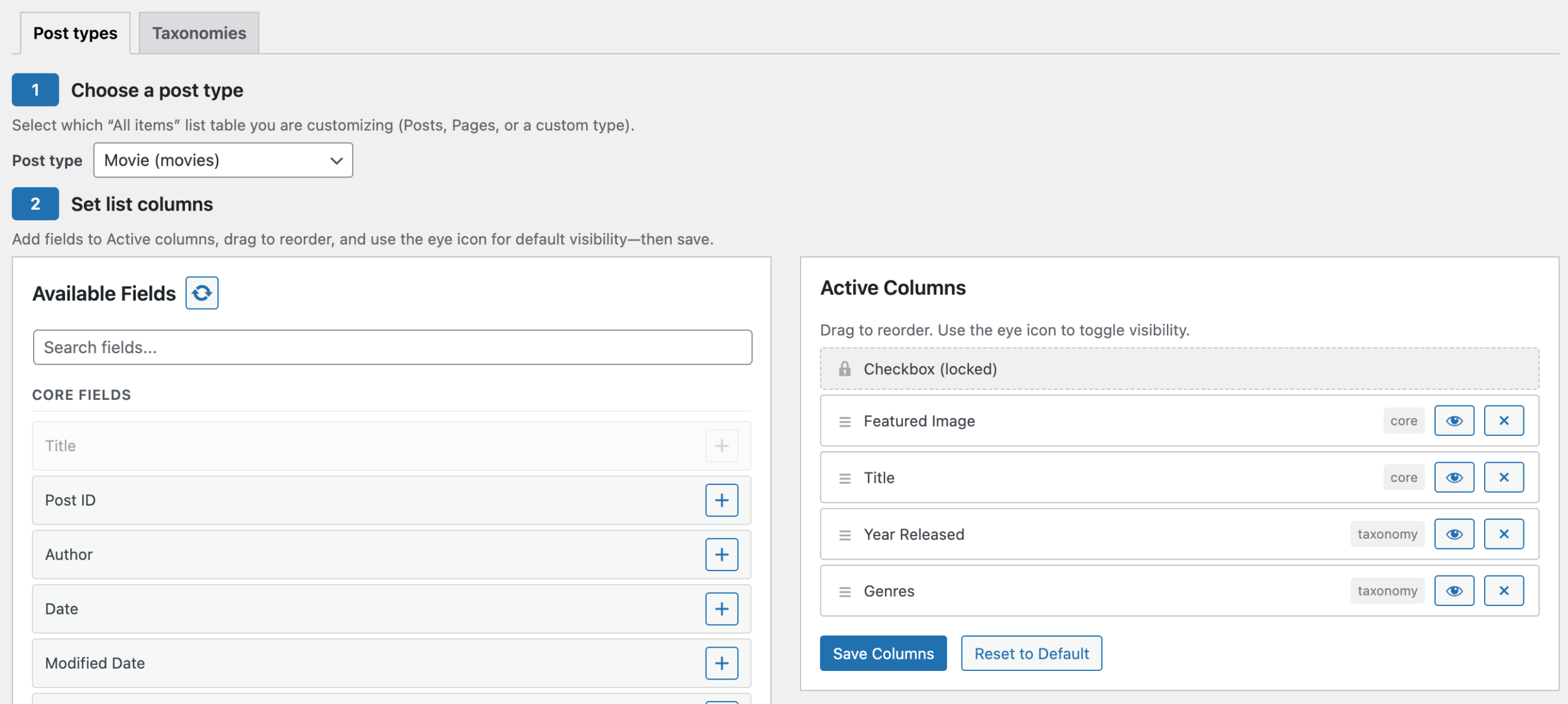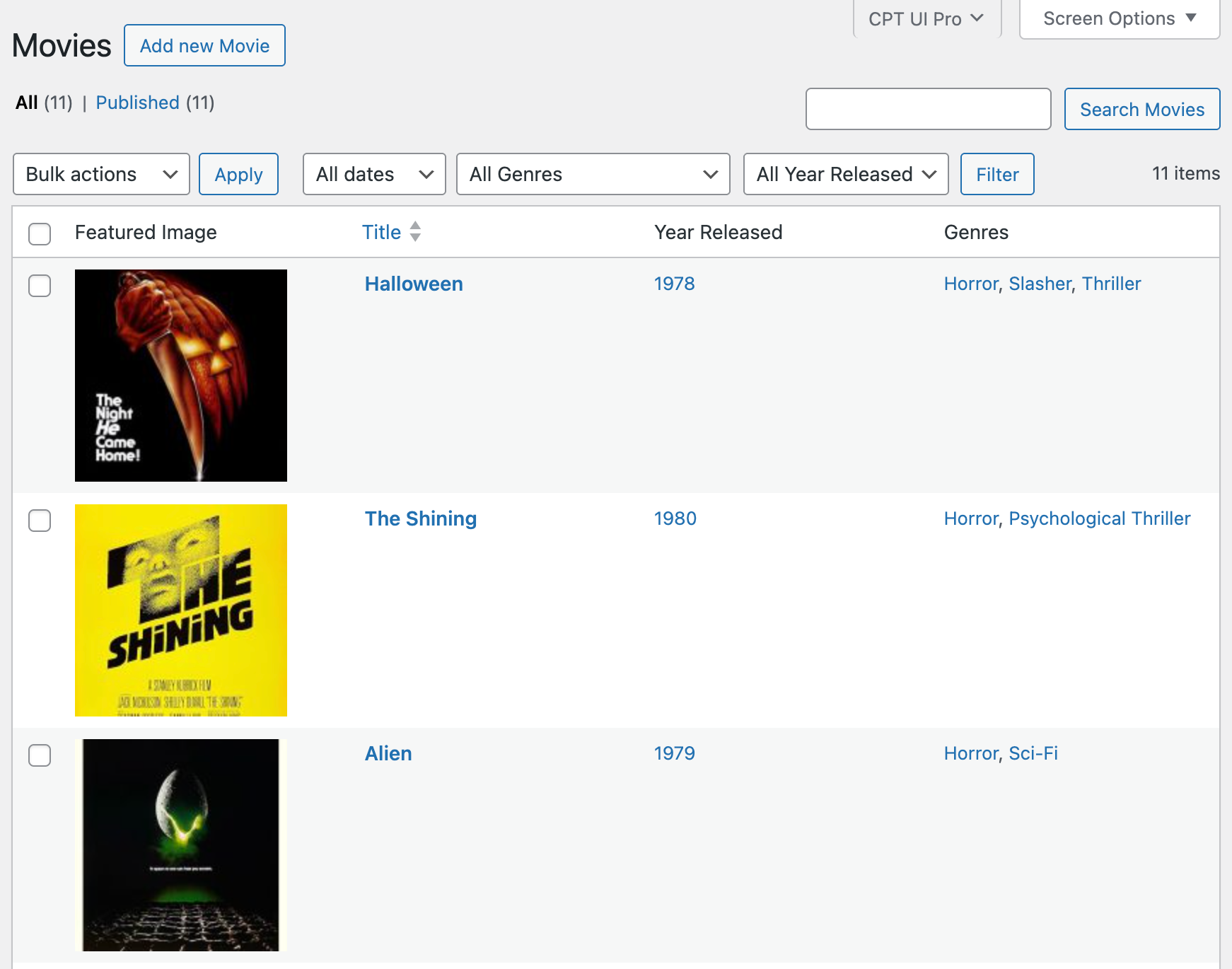

Custom Post Type UI Pro 1.1 is out today! It’s the first feature release since 1.0, when we folded CPT UI Extended into Pro, and it adds a lot.
You can now lock down who’s allowed to change your post types and taxonomies. You can rename and re-icon the CPT UI Pro admin menu. And the display tools that came over from Extended no longer need the free CPT UI plugin installed.
If you build WordPress sites for other people, this one’s for you. Give a client admin access without giving them the power to break the content model. Put their language on the menu. Keep everything working even if the post types live in code.
Decide who can change your content structure
Post types and taxonomies are the skeleton of a site. Delete one and the content doesn’t disappear. It just stops showing up anywhere, which is arguably worse. Until now, any administrator could do that from the CPT UI screens.
The new Access Control page under CPT UI Pro fixes that. Switch it on and pick which administrators can manage CPT UI and CPT UI Pro settings. Everyone else keeps their normal admin access. They just can’t touch your post types, taxonomies, columns, or filters.
Under the hood it’s a dedicated manage_cptui capability. Any user can be granted the new capability and only those users will have the ability to update and delete custom post types.
Locked yourself out? It happens. Add this to wp-config.php and you’re back in:
define( 'CPTUI_PRO_DISABLE_ACCESS_CONTROL', true );Put your client’s name on the menu
The new Menu Branding tab lets you change the label and icon of the top-level CPT UI Pro admin menu. Use any Dashicon class or an image URL.
Your client’s editors see something like “Site Content” with an icon that fits their site, instead of the name of a plugin they’ve never heard of. You keep the full tool behind it.
Pair it with Access Control and the handoff gets a lot cleaner. The client’s team sees a menu that makes sense to them, and only the people you choose can change what’s inside it.
Display tools that don’t care where your post types came from
In 1.0 we brought CPT UI Extended’s display features into Pro: the shortcode builder, the CPT UI block, and theme template overrides. They worked great, as long as the free CPT UI plugin was active.
As of 1.1, those three load on their own. If your post types are registered with register_post_type() in a theme or plugin, or by another tool entirely, you can still use Pro to display them. The few features that only make sense alongside CPT UI still load automatically whenever it’s active.
Already running both plugins? Nothing changes for you.
The smaller stuff
- The numeric “less than” filter works now. Filtering list screens by a number field with
<behaves correctly on both post and term list screens. - Column sorting feels right. Dragging columns into a new order no longer highlights the text underneath.
- Clean uninstall. Delete the plugin and it removes its Access Control and Menu Branding settings with it. Column and filter settings stay.
- Tested up to WordPress 7.1.4, with a refreshed translation template for translators.
There’s also some internal cleanup, like moving inline admin styles into the stylesheet and removing unused code. You won’t notice it, which is the point.
Get CPTUI Pro v1.1
Have an active license? Update from Dashboard → Updates like any other plugin, or download 1.1 from your Pluginize account. Your columns, filters, and Extended settings carry over untouched.
New to Pro? The free CPT UI plugin registers your post types and taxonomies. CPT UI Pro handles what comes after: admin columns, list filters, front-end display, and now control over who can change any of it. Get CPT UI Pro!